
WhatsApp Business
Connect VoiceBooker to your own WhatsApp Business Platform number through Meta’s WhatsApp Cloud API. This is a manual, self-managed setup: you create and control the Meta app, WhatsApp Business Account (WABA), phone number, system-user token, and webhook.
The labels in Meta can change as Meta updates its dashboard. The screenshots below are the original screenshots from the manual reference flow; follow the equivalent VoiceBooker fields and steps described in the text.
If the number is currently active in the WhatsApp Business app, do not delete it or register it through this flow without checking Meta’s coexistence requirements. Use the supported coexistence or migration flow instead.
1. Get the WhatsApp Cloud API details from Meta
You need these values before connecting the account in VoiceBooker:
- WhatsApp Business Account ID (WABA ID)
- Phone Number ID (not the visible phone number)
- Long-lived system-user access token
For production, you also need a Meta Business Portfolio, a WhatsApp Business Account, a Meta Business app with the WhatsApp use case, and a verified business phone number.
2. Create or select a Meta app
Open Meta for Developers and either select an existing app or create a new one.
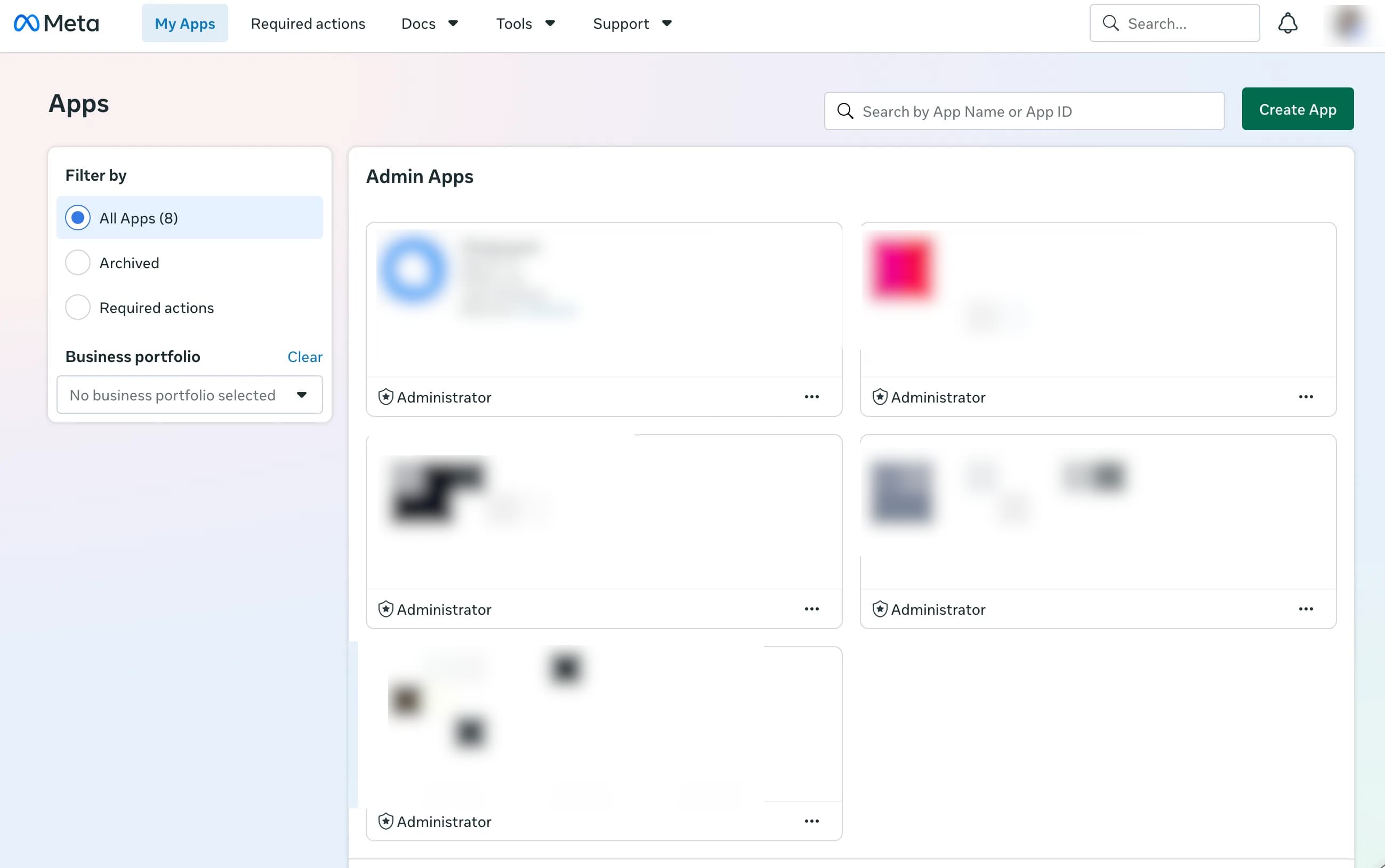
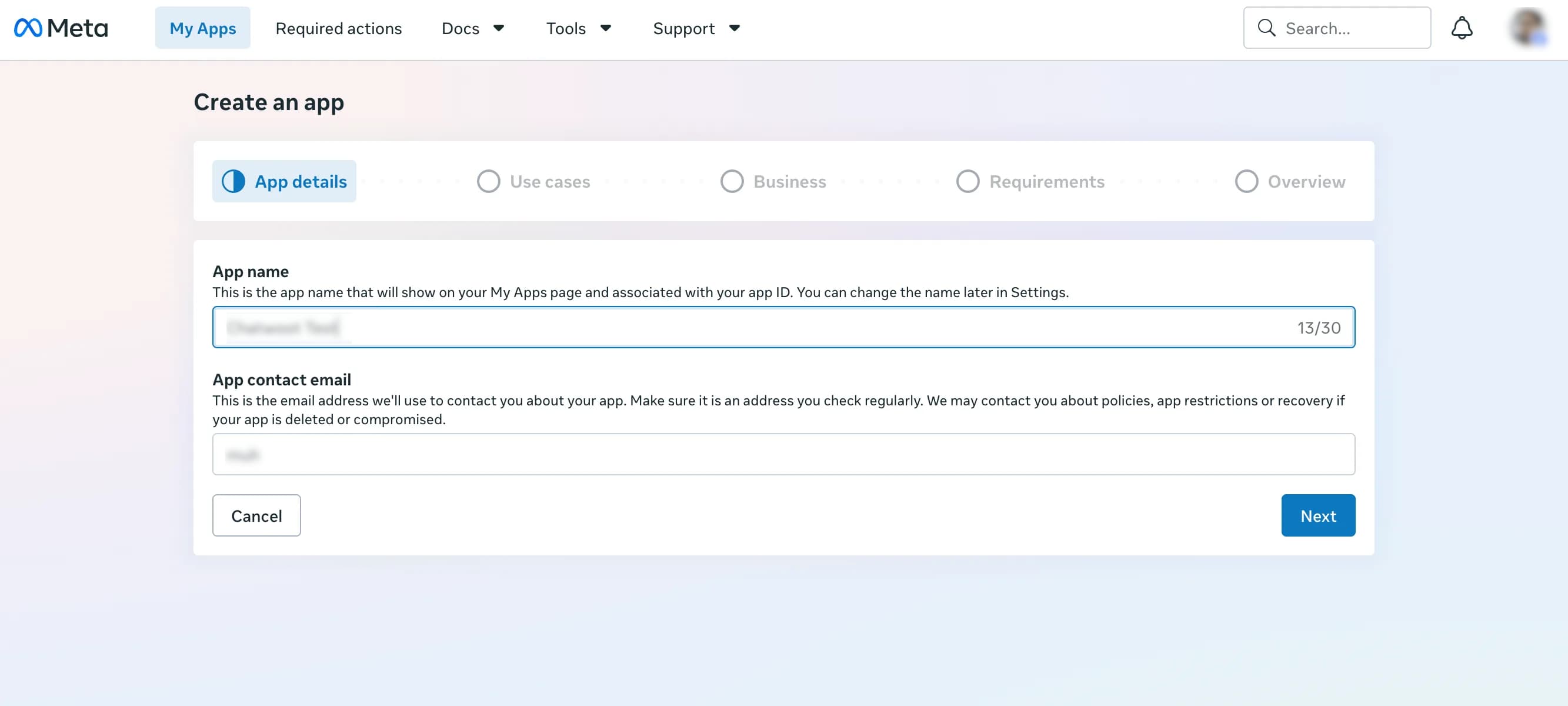
If you create a new app:
- Enter an app name, such as
VoiceBooker WhatsApp. - Enter a contact email.
- Select Business as the app type when Meta asks for it.
- Create the app.
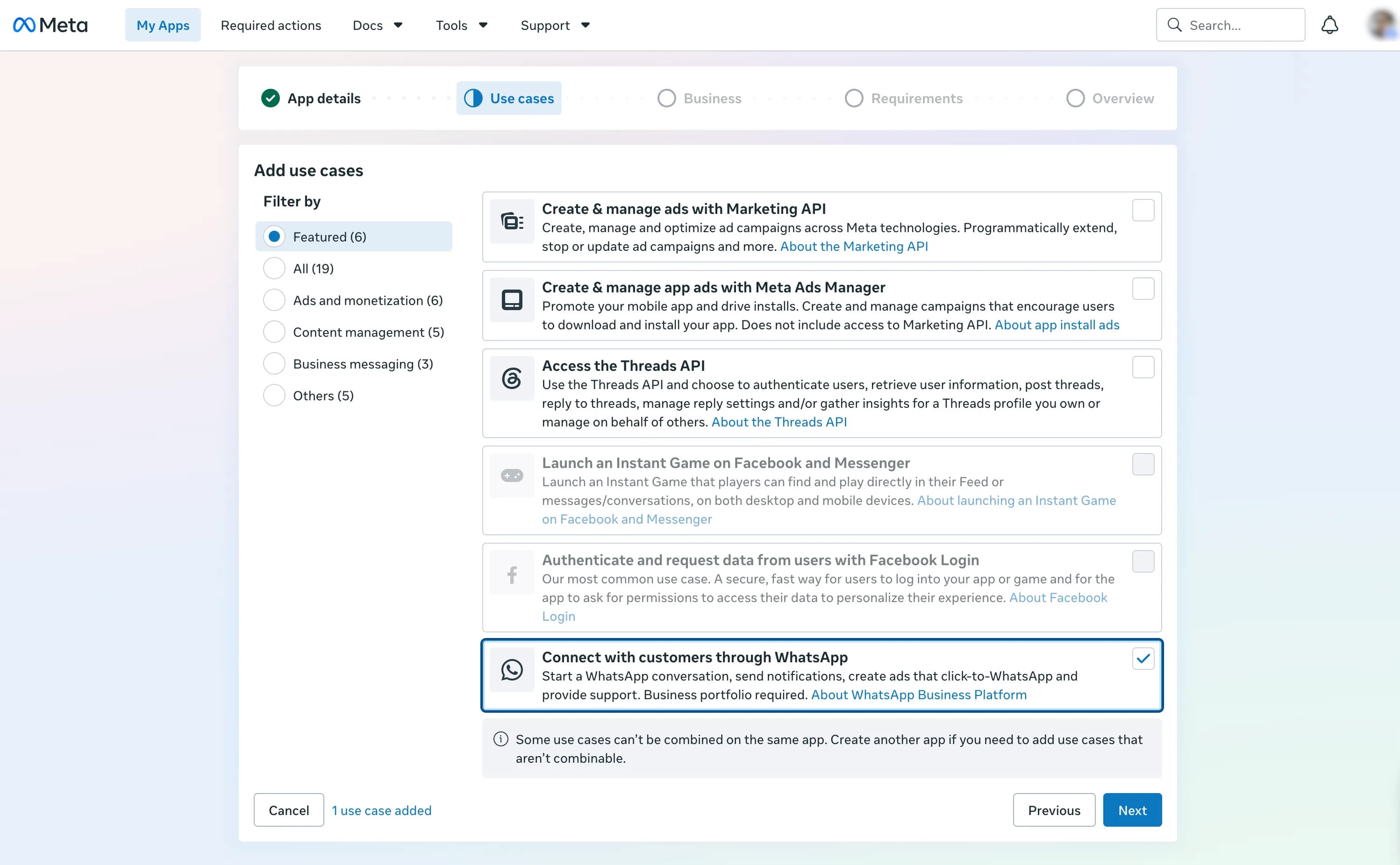
3. Add the WhatsApp use case
In the app setup flow, choose Connect with customers through WhatsApp and continue.
Select the Meta Business Portfolio that owns the WABA. If you do not have one yet, create it when Meta offers that option.
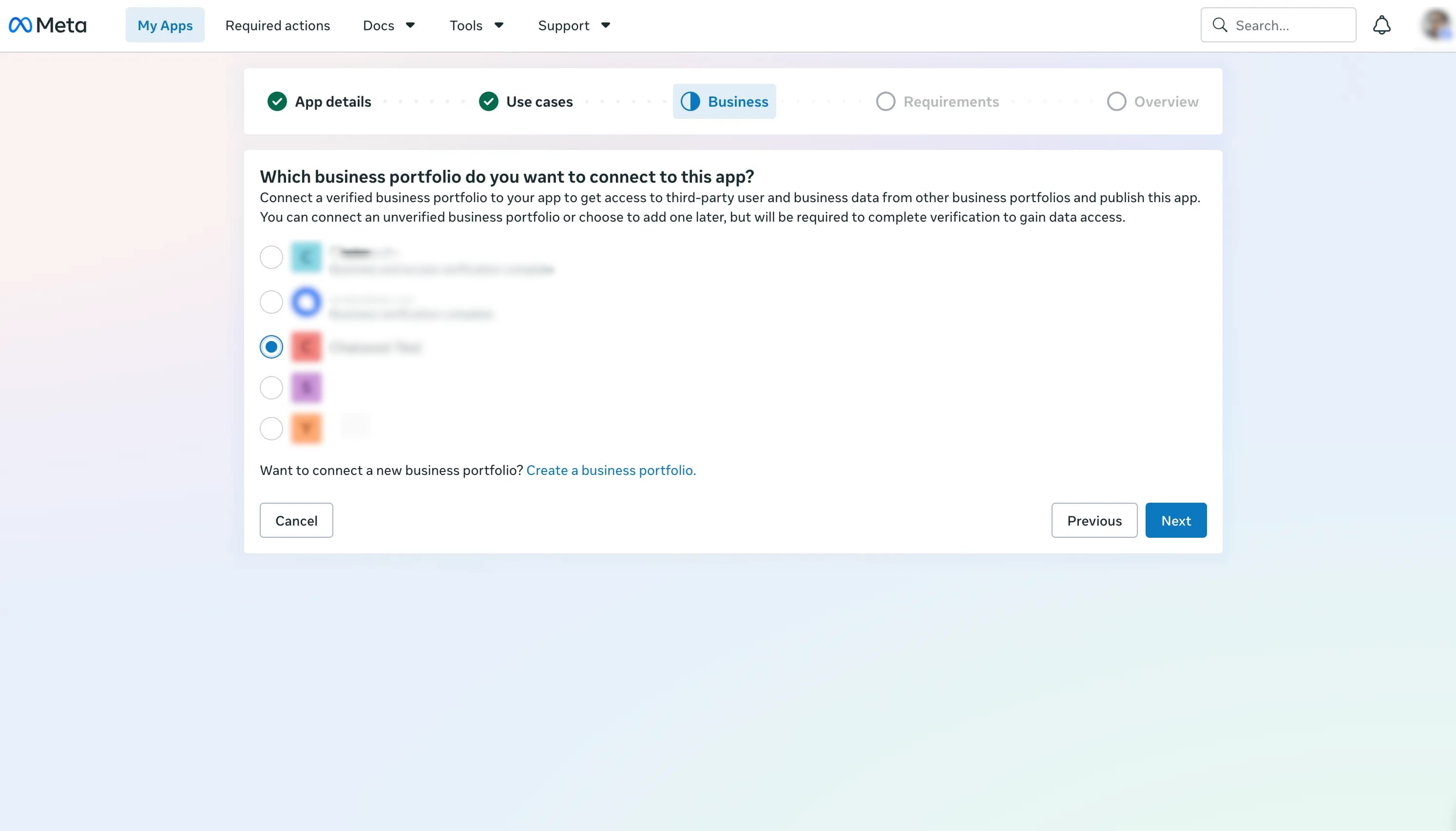
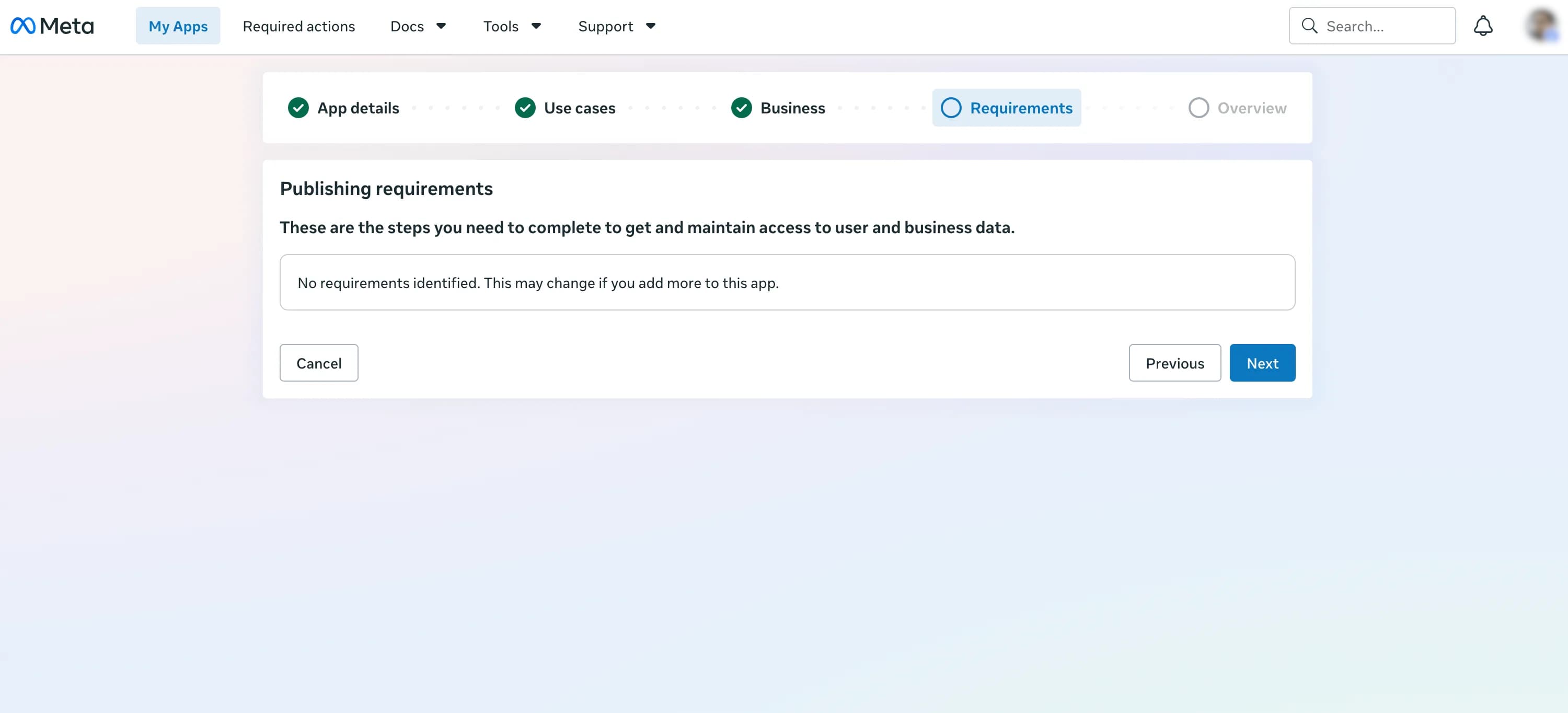
Review the publishing requirements and app overview, then create the app.
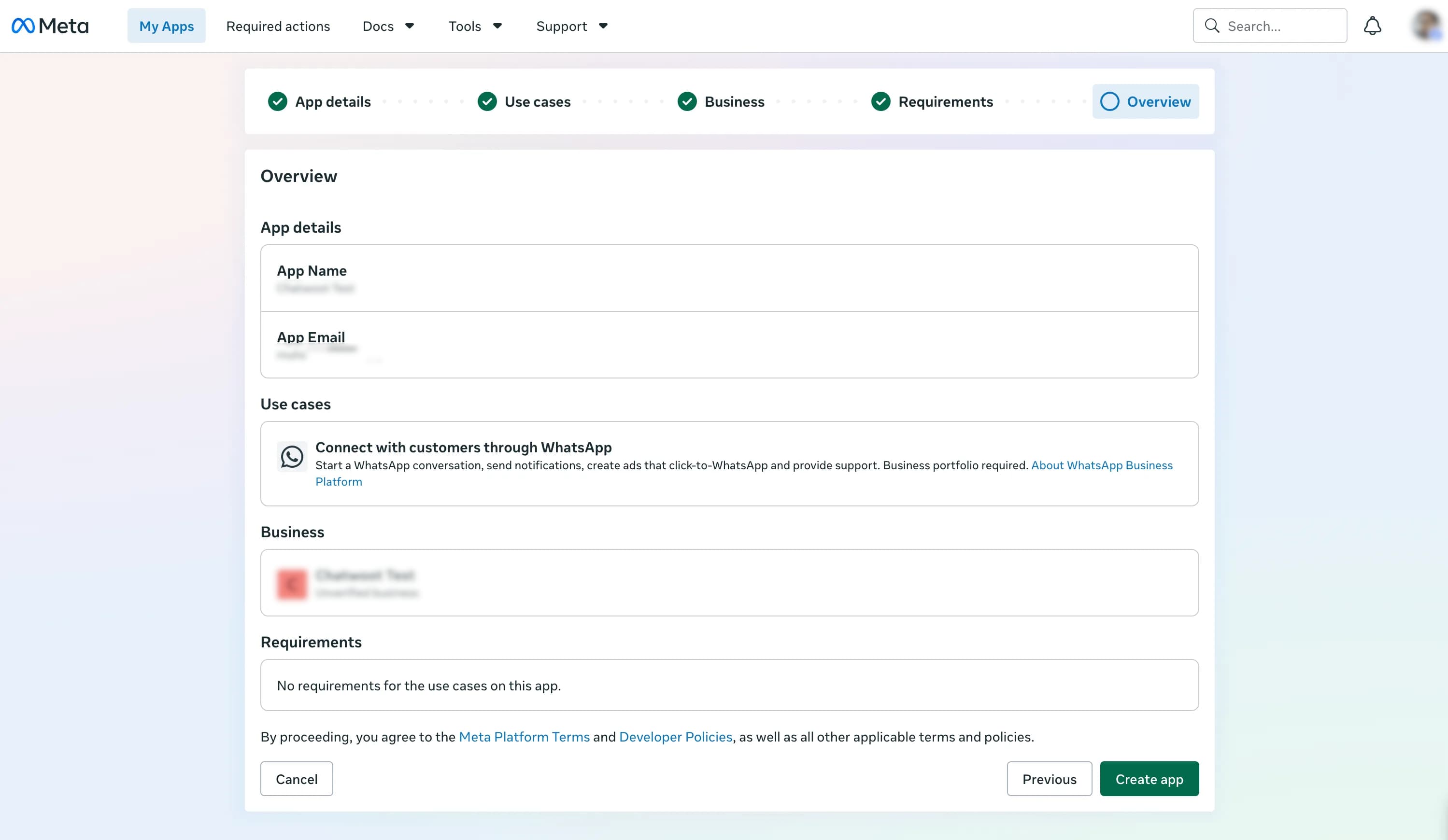
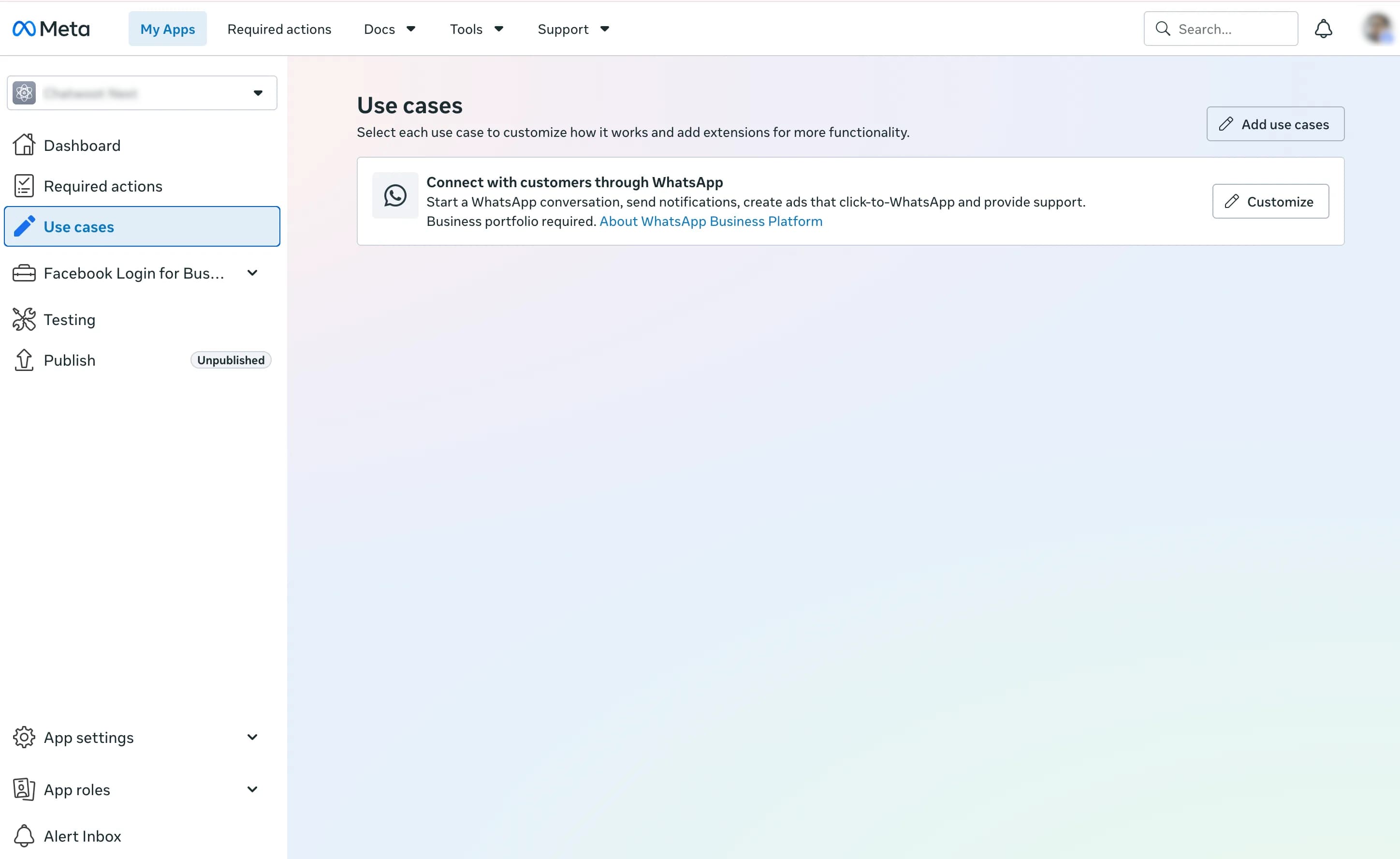
After the app is created, open the WhatsApp use case and click Customize.
4. Open WhatsApp API Setup
In the new Meta interface:
- Open Use cases.
- Select Connect with customers through WhatsApp.
- Click Customize.
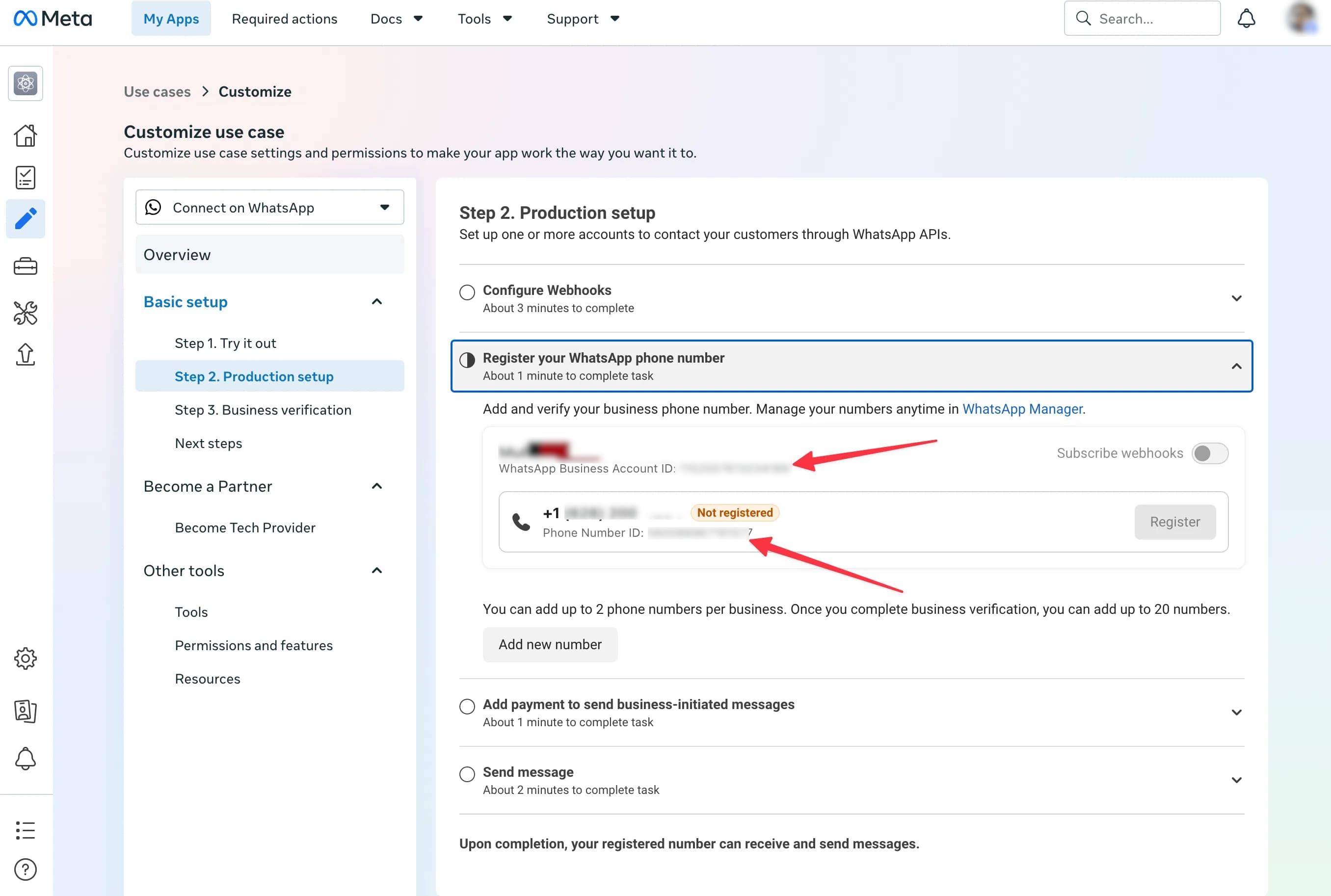
- Open API Setup or Basic setup → Step 2. Production setup.
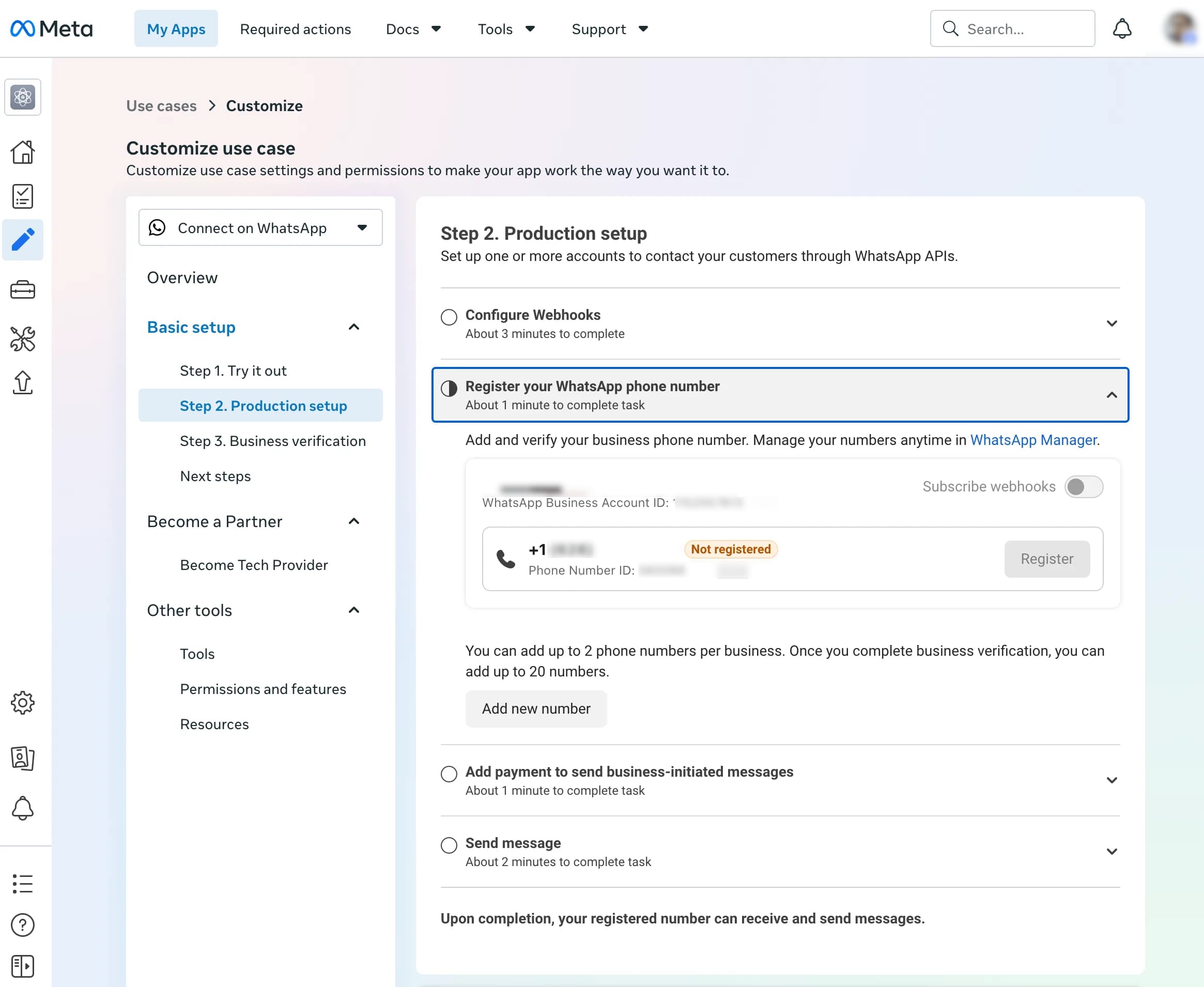
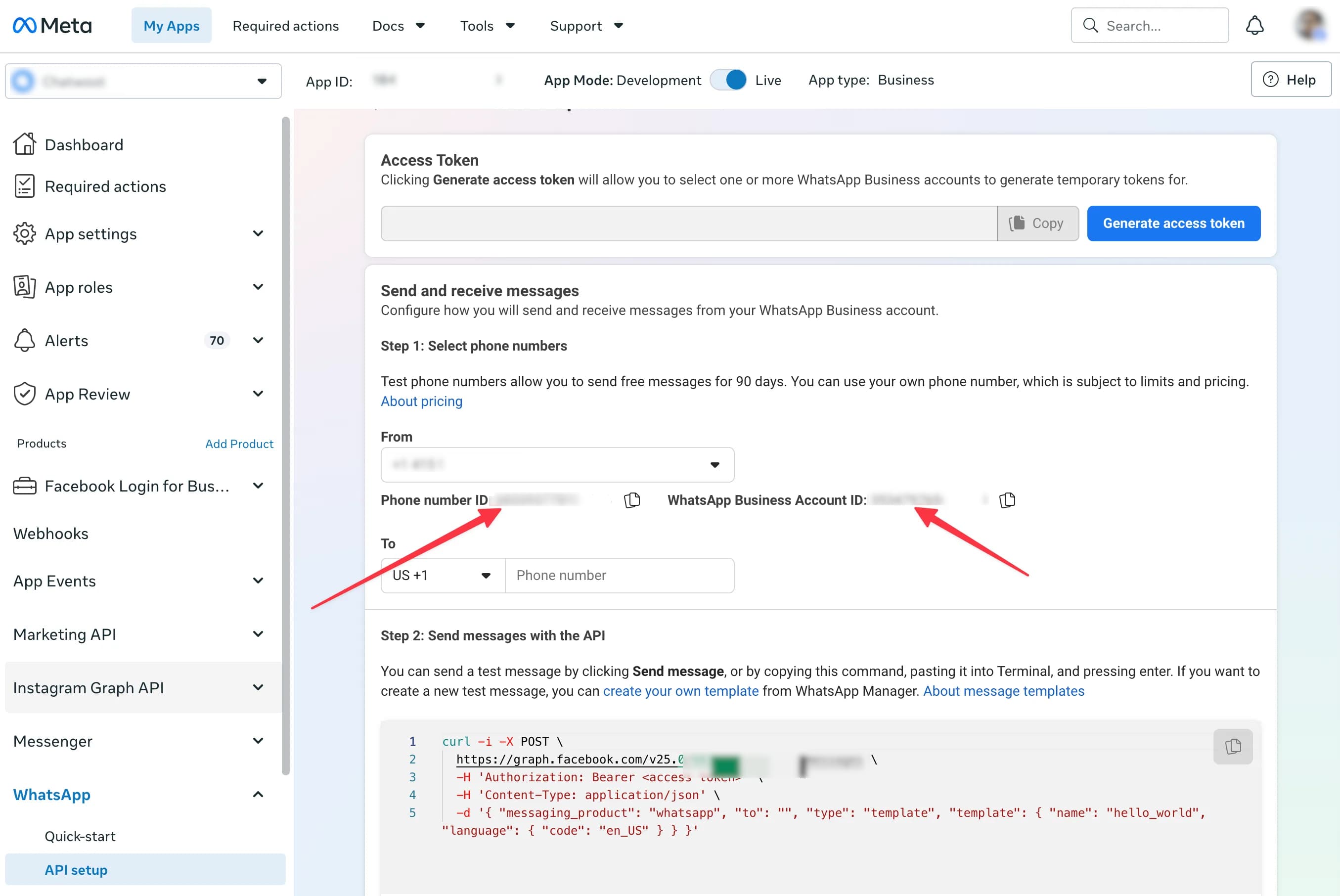
Older Meta apps may show WhatsApp → API setup in the left navigation.
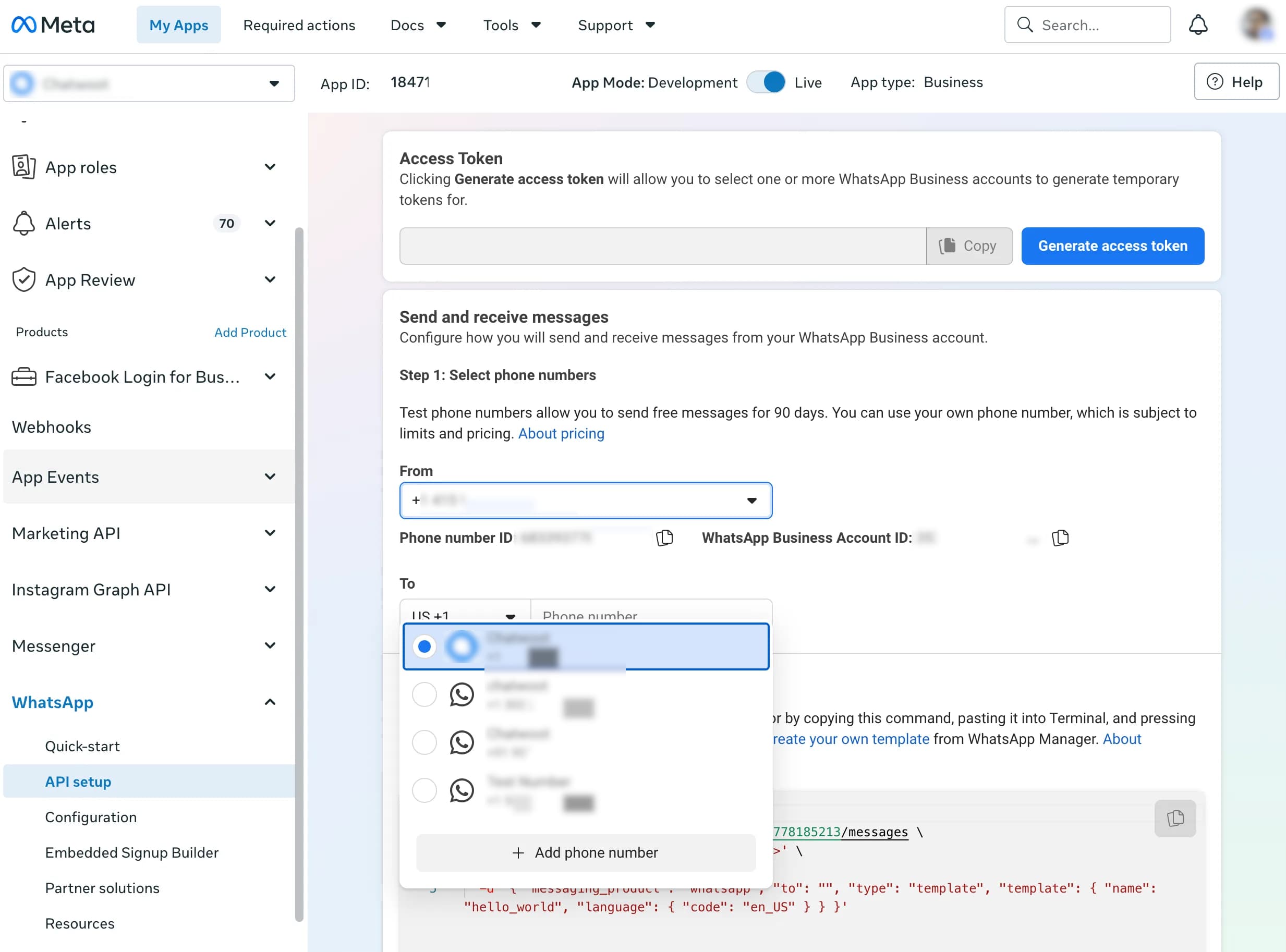
5. Add and verify the business phone number
If the number is not already listed:
- Click Add phone number.
- Enter the WhatsApp Business display name and business details.
- Enter the phone number.
- Choose verification by SMS or phone call.
- Enter the one-time code sent by Meta.
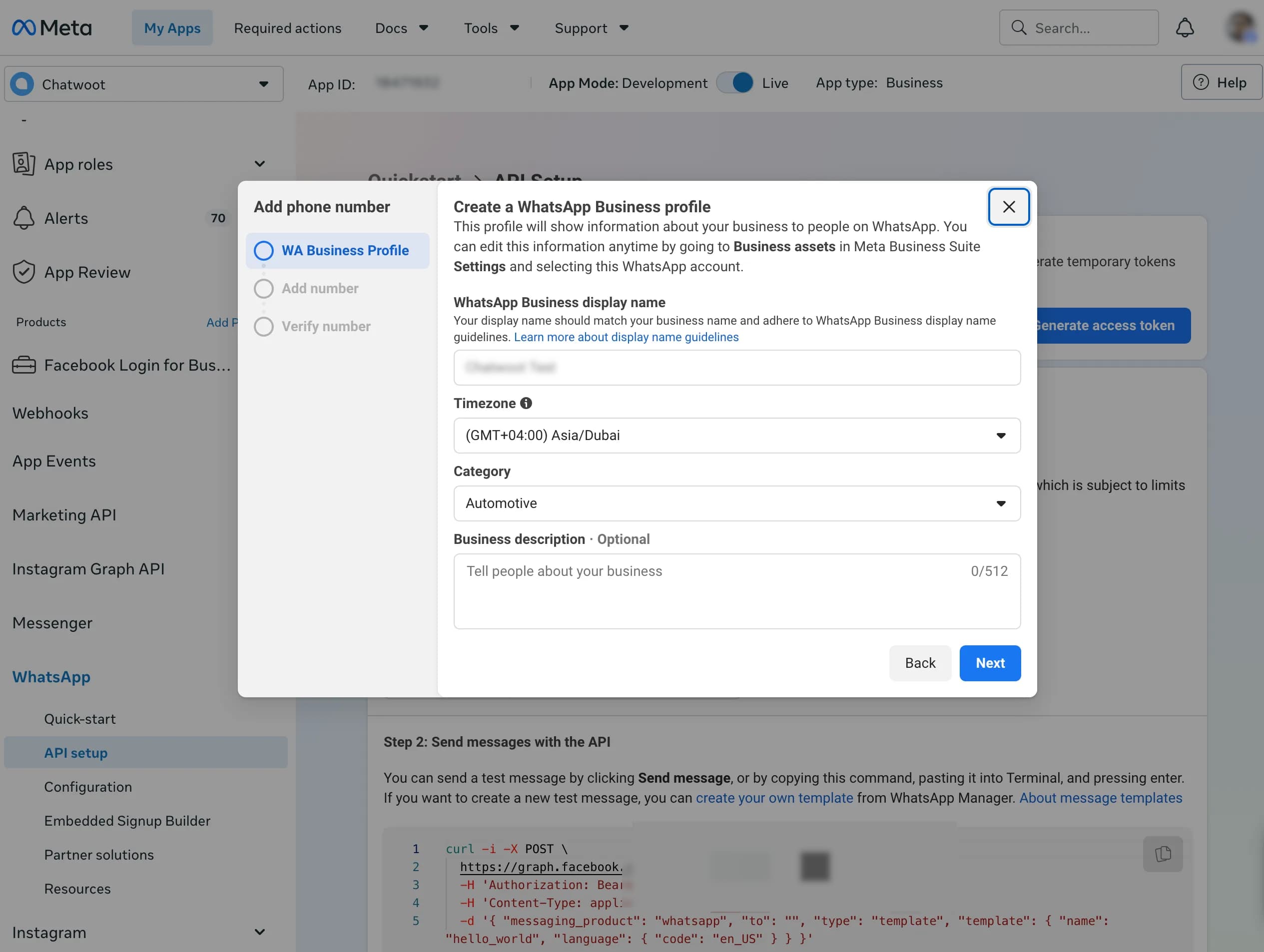
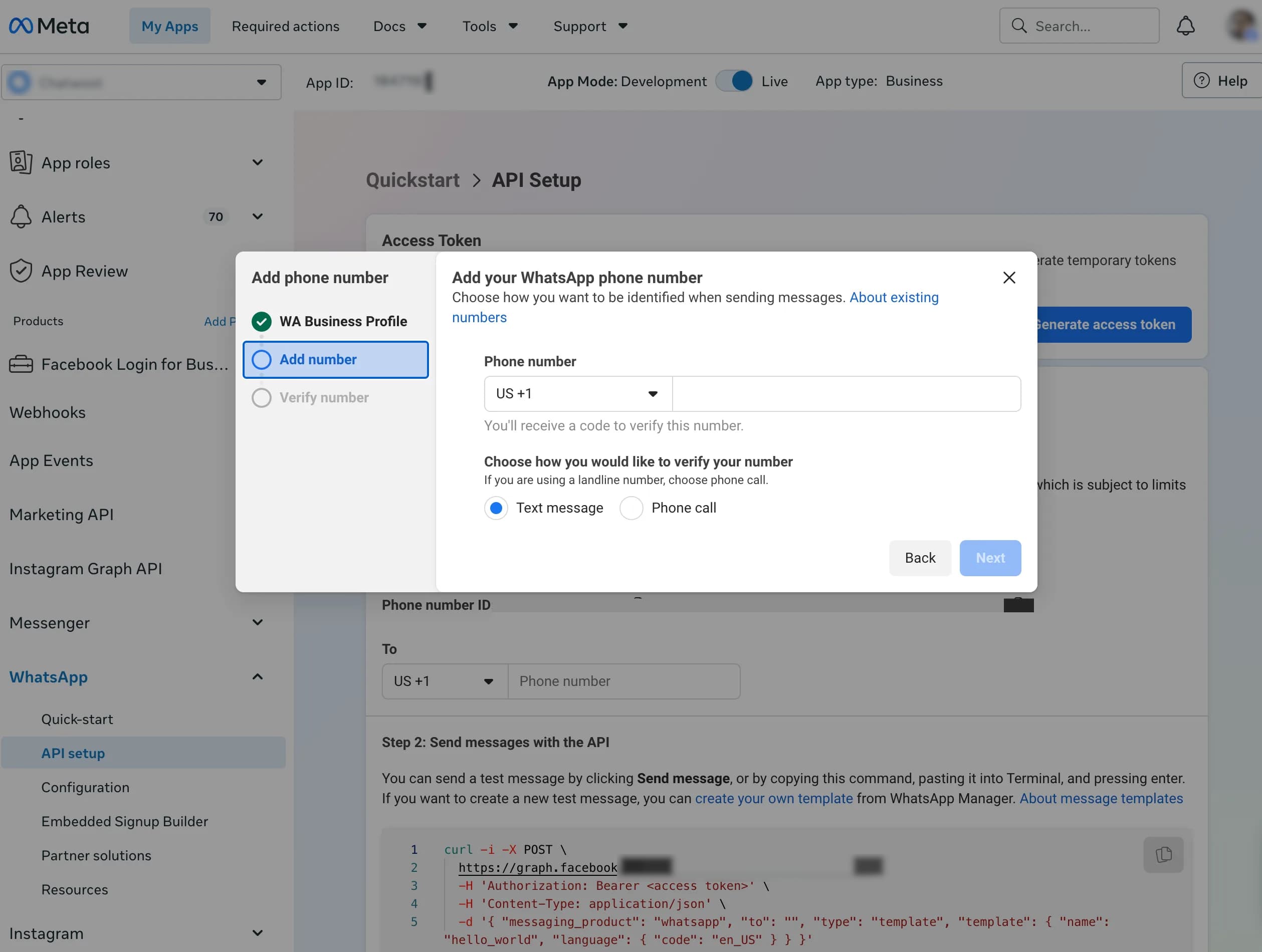
Complete Meta’s registration and two-step verification steps if they are shown. After the number is registered, select it in the From selector.
Copy the numeric Phone Number ID and WhatsApp Business Account ID shown below the selected number. The Phone Number ID is not the phone number that customers dial.
6. Create a system-user access token
Open Meta Business Settings for the Business Portfolio that owns the WABA.
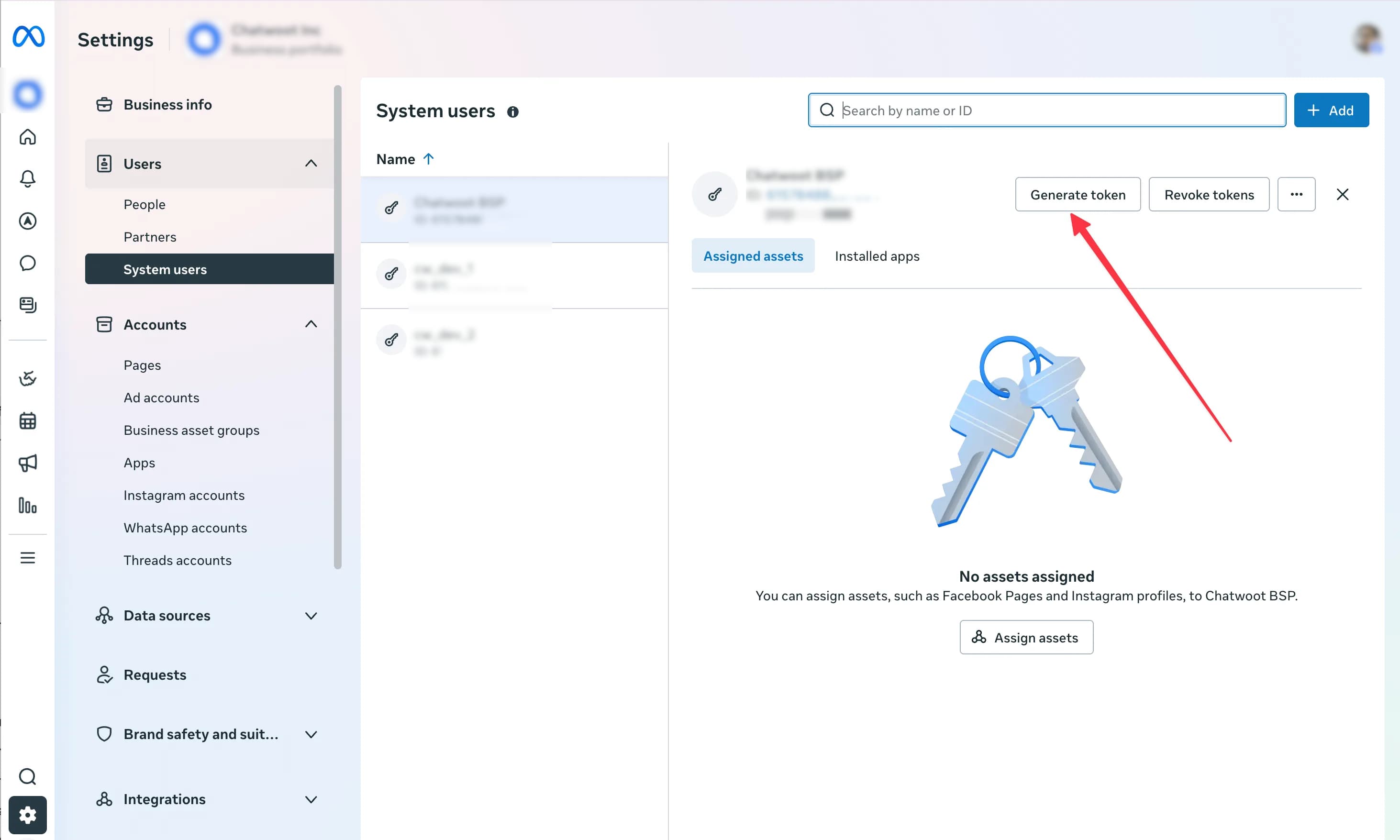
- Go to Users → System users.
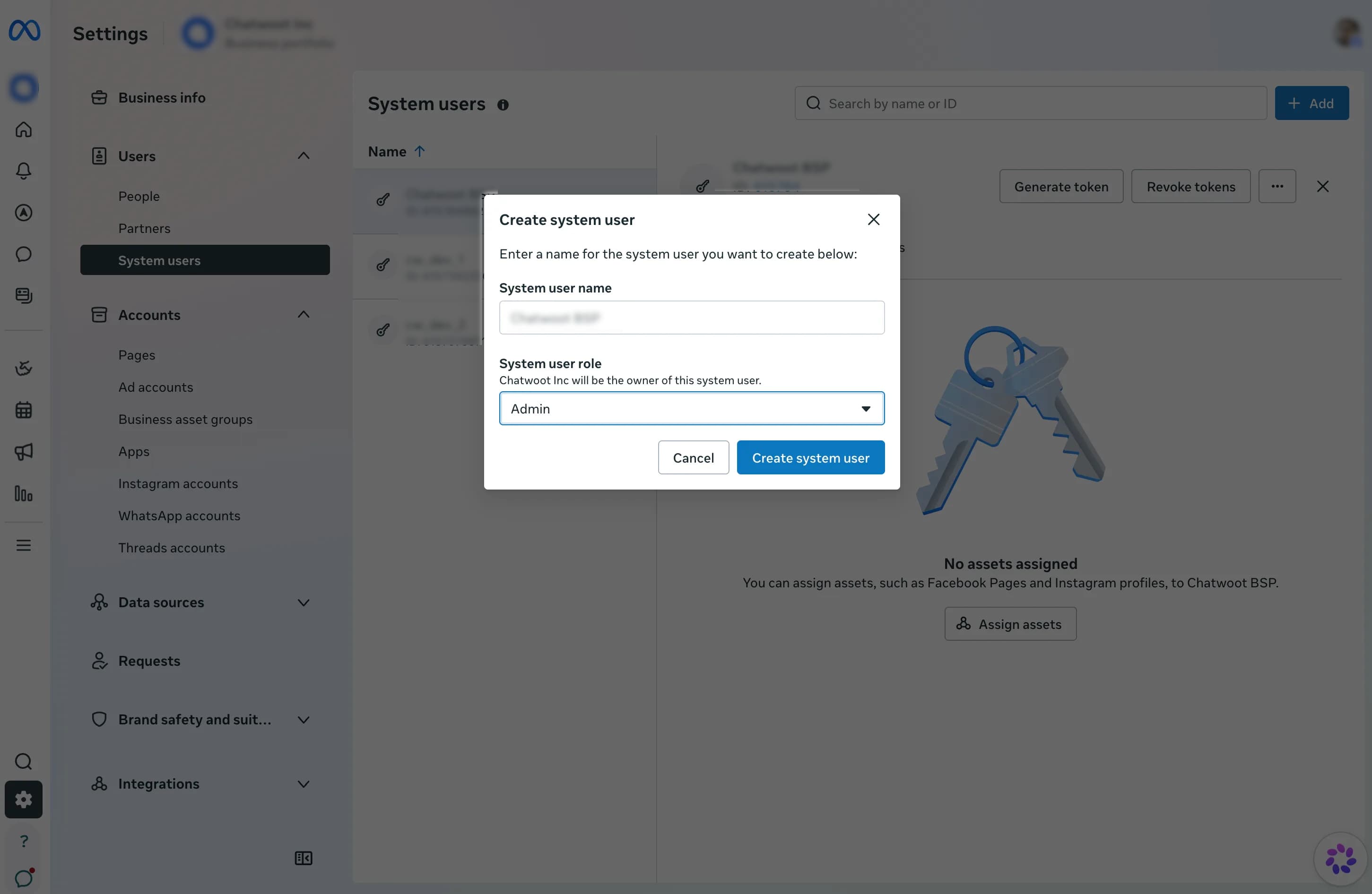
- Click Add.
- Name the user, for example
VoiceBooker WhatsApp. - Select Admin and create the System User.
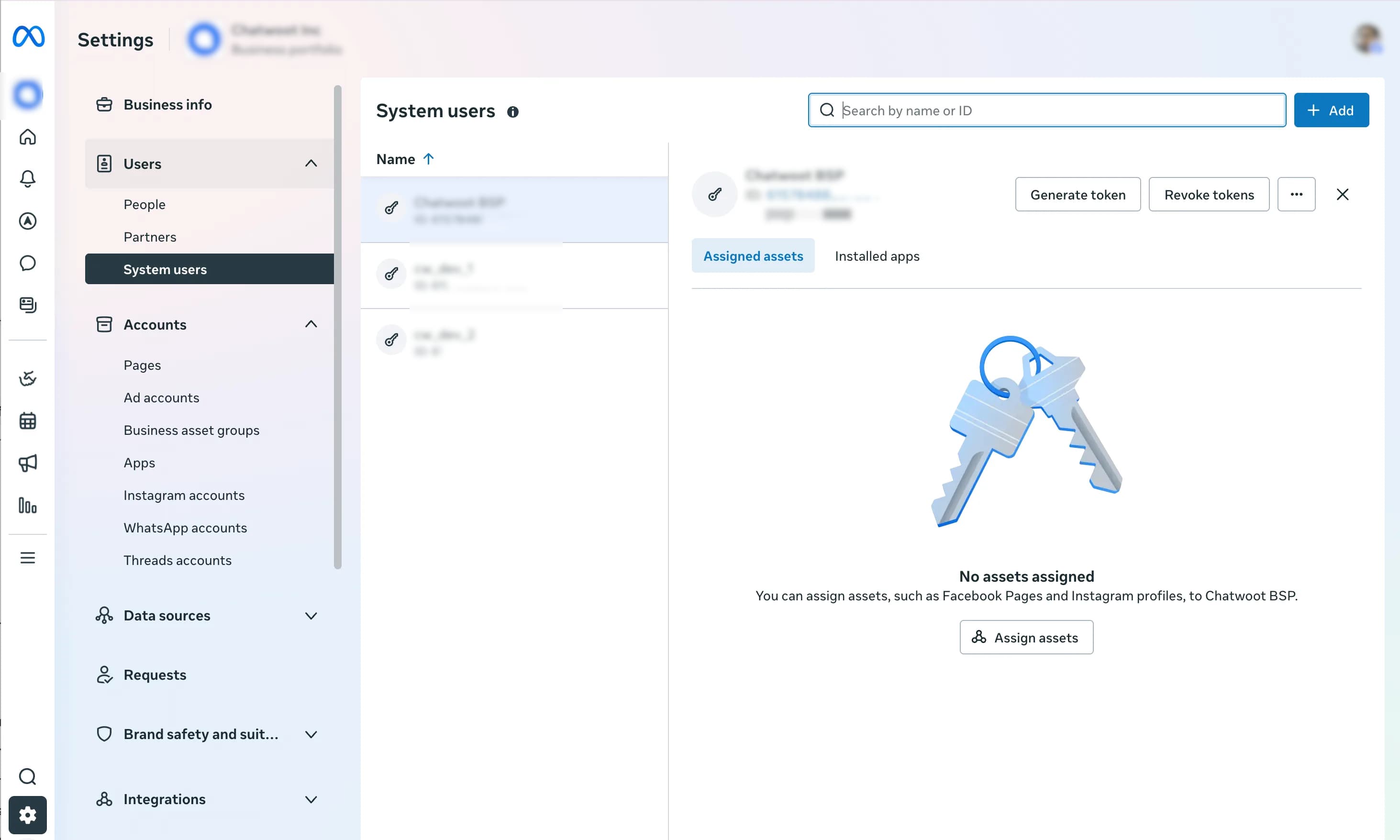
Select the System User and assign both:
- the Meta app used for WhatsApp;
- the WhatsApp Business Account (WABA).
Grant the required control and save the assignments. Without these assignments, Meta may reject the token or the WhatsApp API requests.
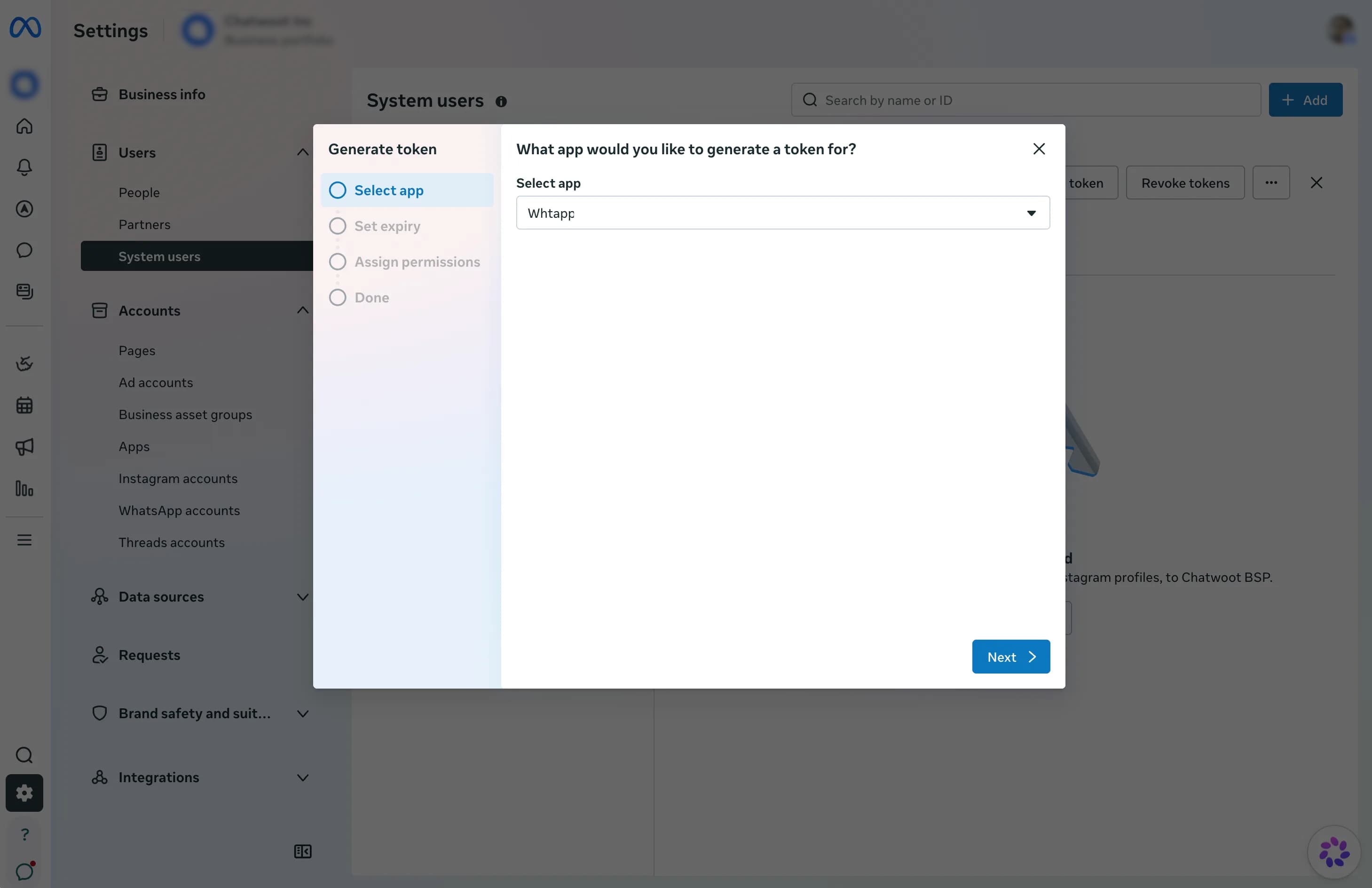
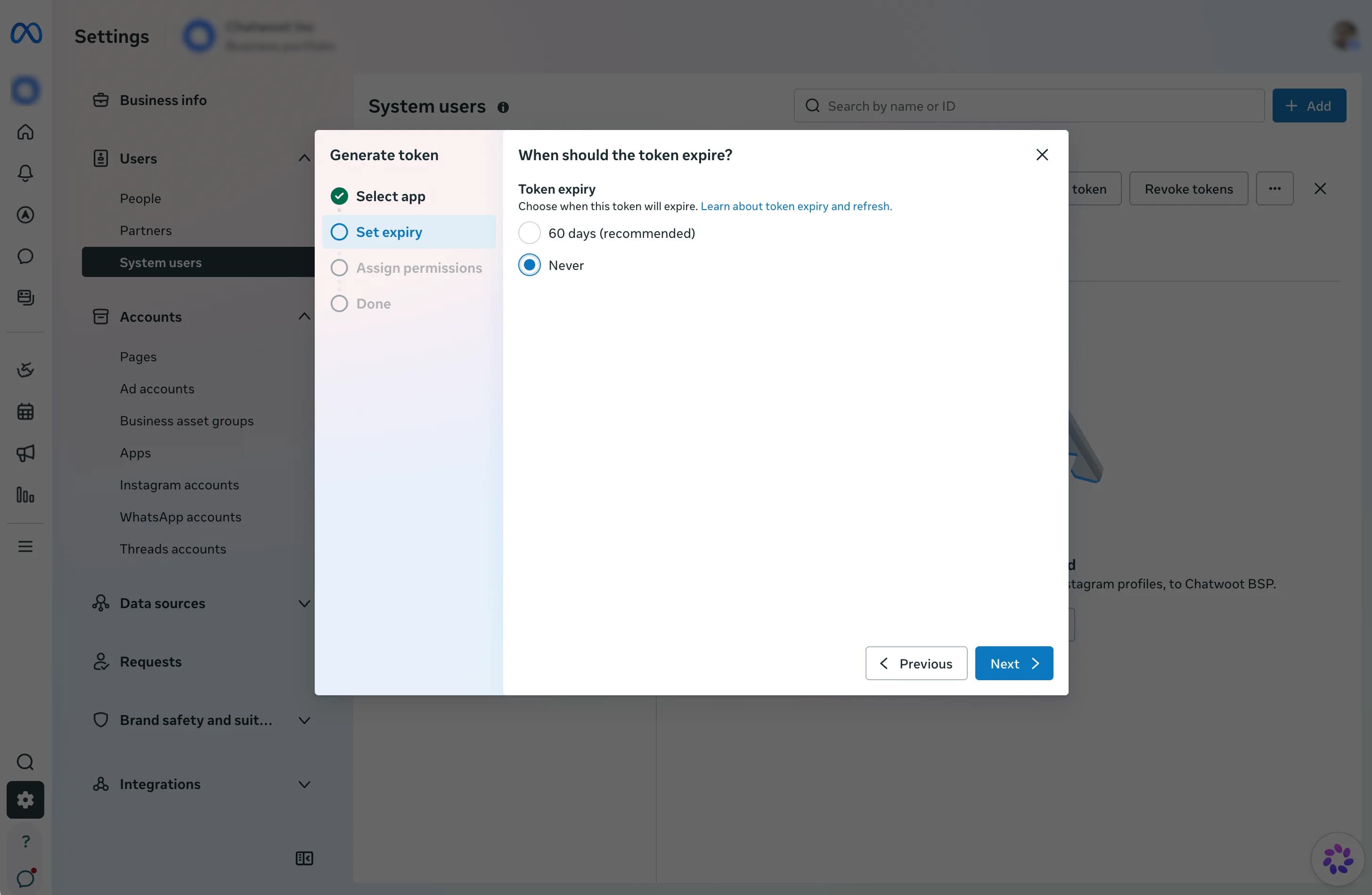
Click Generate token, select the VoiceBooker WhatsApp app, and choose Never for the expiry if that option is available.
Select these permissions:
whatsapp_business_managementwhatsapp_business_messaging
Meta may also show whatsapp_business_manage_events; select it if Meta requires it for webhook management in your app.
Generate the token and copy it immediately. Meta may not show the token again.
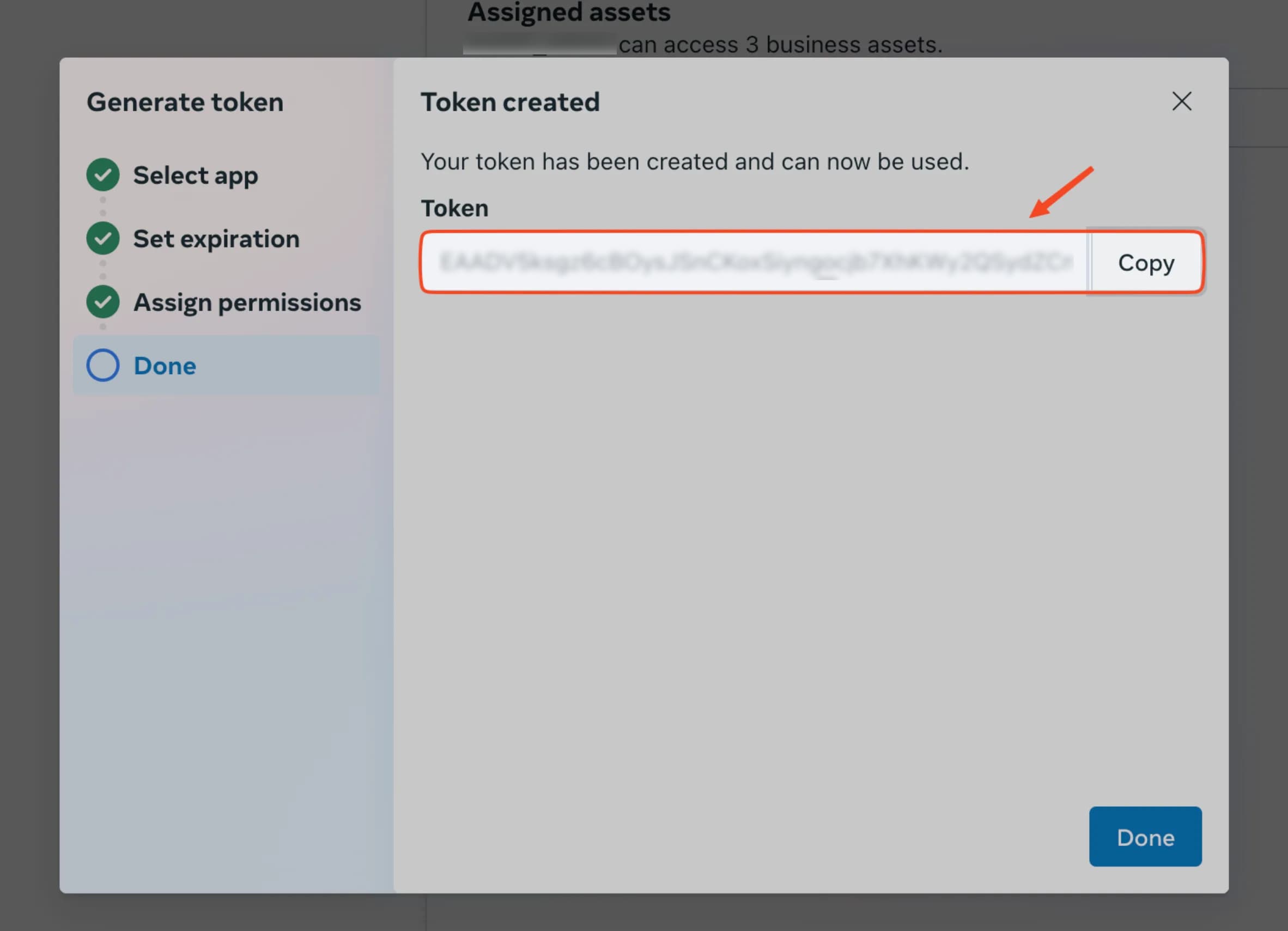
Keep the token private. Anyone who has it may be able to use the WhatsApp Cloud API connection.
7. Connect the account in VoiceBooker
In VoiceBooker, open Accounts → WhatsApp and create or edit the WhatsApp Business account. Complete the fields shown in the form:
- Name: a label for this connection, for example
WhatsApp Business. - Account type: select WhatsApp Business.
- Phone Number ID: the numeric Phone Number ID from Meta API Setup. This is not the visible phone number.
- Business Account ID: the numeric WhatsApp Business Account ID (WABA ID).
- API Access Token: the long-lived system-user token created in Meta Business Settings.
- Webhook URL: the VoiceBooker callback URL that must be entered in Meta’s WhatsApp webhook configuration.
- Verification token: the token used by Meta to verify the webhook. Use the same value in VoiceBooker and Meta.
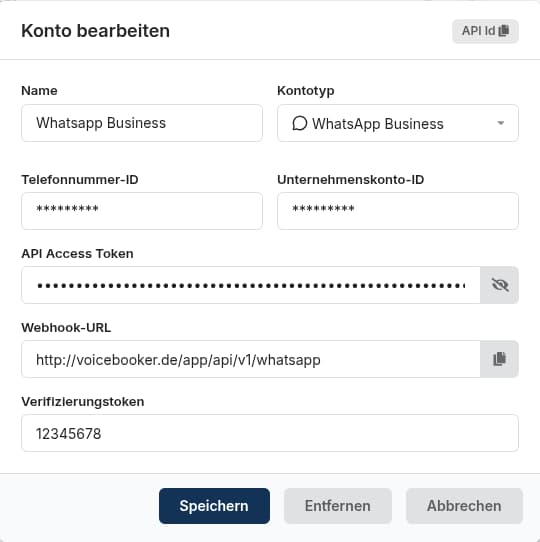
Save the account. VoiceBooker validates the credentials and associates the WhatsApp number with the account.
The VoiceBooker account provides the Callback URL and Verify Token needed for the webhook. Copy both values and configure them in Meta under WhatsApp → Configuration → Webhooks. Click Verify and Save, then subscribe to the messages webhook field. If Meta shows a separate WABA Subscribe action, subscribe the app to the WABA as well.
Finally, enable the WhatsApp channel and assign it to the bot that should answer messages. Send a test message to the connected business number and confirm that VoiceBooker receives and answers it.
Important limitations
- Temporary Meta tokens are intended for testing and usually expire after approximately 24 hours.
- A number already active in the WhatsApp Business app may require coexistence or migration instead of direct registration.
- The visible phone number, Phone Number ID, and WABA ID are different values.
- Incoming messages are not delivered until the webhook is verified, the
messagesfield is subscribed, and the WhatsApp channel is assigned to a bot.