

Quickstart Single-Stage Bot
In the previous tutorial, we configured an assistant with the Wizard where the prompt was generated automatically. In this tutorial, we configure an AI phone assistant for a 🚗 car dealership using a prompt and functions to extract data.
The scenario is as follows:
A caller wants to schedule a test drive. The assistant should capture the following caller data in this case:
- First and last name
- Email address for sending a confirmation
- Which vehicle type and brand the test drive should be scheduled for
Afterwards, the caller should receive a 📨 confirmation email with the details provided.
Quick overview
After you have created a new assistant, select the Welcome stage and describe the behavior and goal of the
assistant as a prompt.
You can also choose a prebuilt prompt template depending on the use case:
Car dealership, prescription hotline, hotel reception, repair service, recruiting, and insurance.
Since the caller should receive a confirmation email at the end of the call, the AI must be instructed via the prompt to execute the corresponding function/action and the function/action must be configured, i.e., what should happen.
1. Create/define the prompt
First, we define/use the Welcome stage with the following prompt:
# AI phone assistant for a car dealership

## Instruction: You are a phone bot. Answer briefly and precisely. Use formal address (Sie-Form).

## Greeting:
"Good day and welcome to [Dealership Name]. I am your virtual assistant and will be happy to help you schedule a test drive."

## Goal clarification:
"To plan your test drive in the best possible way, I need a few pieces of information from you."

## Data collection step by step:

"What is your first name?"
"And your last name?"
"Which email address may I use for the confirmation?"
"Which vehicle are you interested in? Please tell me the brand."
"And which model would you like to test drive?"

## Additional questions (optional):
"Do you already have a preferred date for the test drive?" (Optional if appointment selection is technically possible)

## Closing:
At the end, call the sendmail() function.
"Thank you for your information. I will forward your request to our team. You will receive a confirmation by email shortly. If you have any further questions, we are happy to help. Have a great day!"

## Additional information about the dealership:
Address: [Example Street 3, 01234 Example City]
Phone number: [030-1234567]
Since this prompt comes from a template, you still need to adapt it with the correct details such as the dealership name, address, and phone number.
2. Configure actions/functions
In the prompt, we instruct the AI to call the sendmail() function at the end. This action/function must now be defined.
For this, we create a new function in the Actions/Tools tab with the name sendmail.
Since the AI should capture the caller's first name, last name, etc., and these details should appear in the email, the data must be extracted by the AI so it can be used as variables in the email text. The AI extracts the data automatically during the conversation, but we must tell the AI exactly which data should be extracted: first name, last name, etc. This is done via the parameters we define in a function.
We can create the parameter list manually by defining which parameter, its meaning, and data type we need, or use the Parameter 🧙 Wizard. Using the Parameter Wizard, the AI creates this list for us quickly.
Please ask for the first name, last name, email address, as well as the car brand and model.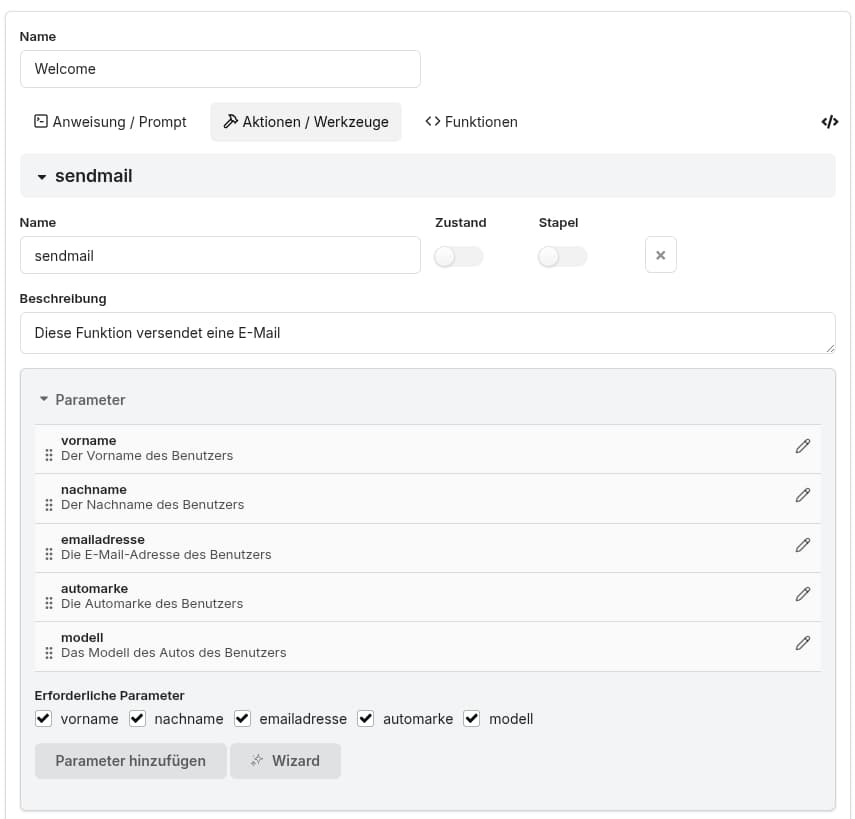
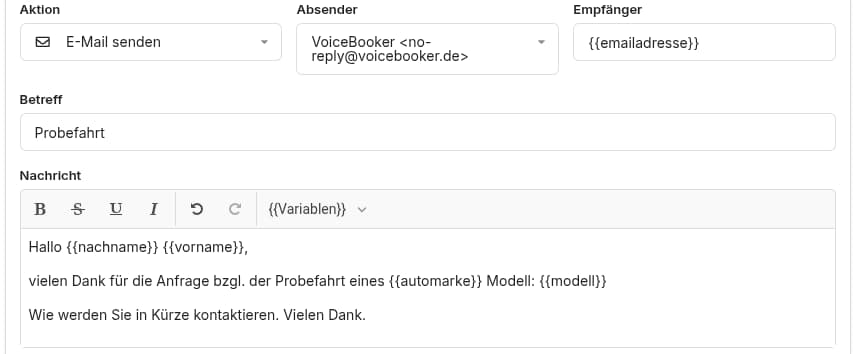
Finally, we must set the action so that an email is sent.
For this, we can use variables such as {{name}} both for the recipient and in the email text. The AI will populate these with values during the conversation so that the email is sent to the caller's email address and their name, desired model, etc. appear in the email text. The available variables are shown as a dropdown in the menu, e.g. {{first_name}}.
👏 Congratulations. You have now created an assistant using a prompt.
By the way, you can also extend this assistant by creating a task/request in the dashboard. Alternatively, you can add further integrations to write this data as a ticket in a CRM/ticketing system.